
PAN card photo resize is the step that makes most online PAN uploads fail. Your photo looks fine on your phone. The portal wants an exact pixel size and a file under 20 KB. This pan card photo resizer sets both for you in one pass.
Upload your photo and this pan card photo resizer crops it to the NSDL (Protean) PAN size. For an NSDL PAN photo resize, it sets 197 × 276 px at 200 DPI. It keeps the file at 20 KB or less. The output is always a JPG. You can also change the width, height, KB limit and DPI if your form asks for something different.
PAN Card Photo Resizer
Upload your photo and get a PAN application photo cropped to the right ratio, resized and compressed under the KB limit. Live preview, JPG download. Everything happens inside your browser. No uploads. 100% private.
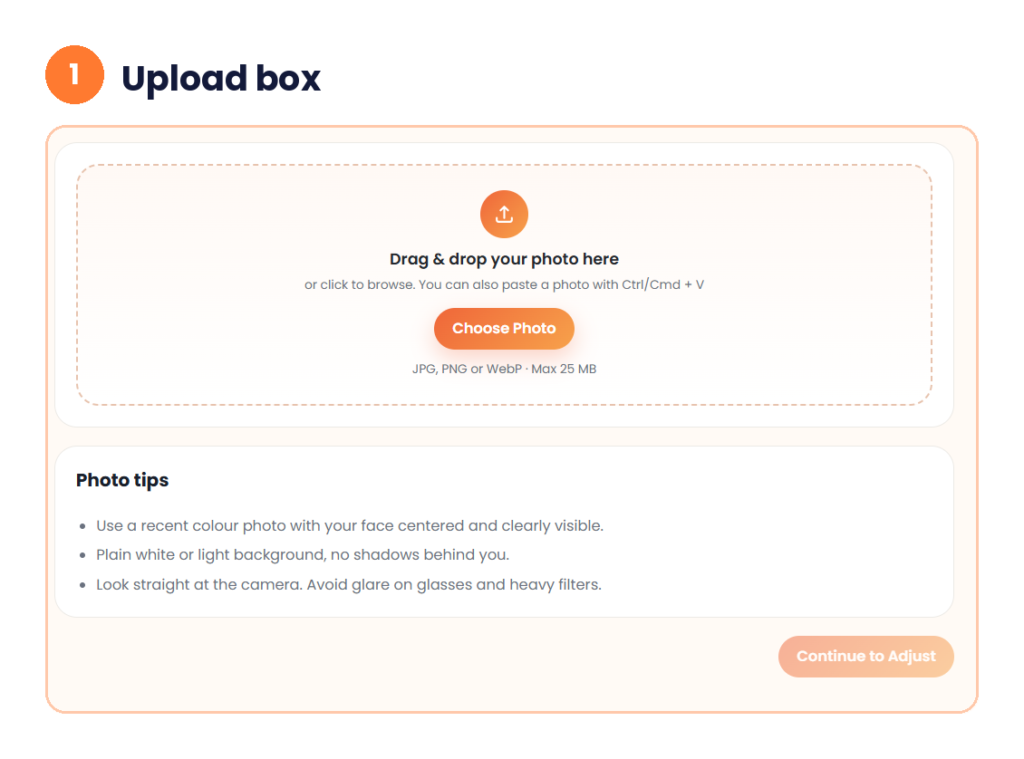
Drag & drop your photo here
or click to browse. You can also paste a photo with Ctrl/Cmd + V
JPG, PNG or WebP · Max 25 MB
Photo tips
- Use a recent colour photo with your face centered and clearly visible.
- Plain white or light background, no shadows behind you.
- Look straight at the camera. Avoid glare on glasses and heavy filters.
Live preview
Auto crop fits the photo to the required ratio. Drag the preview to move your face into the frame.
Size settings
The output is always a JPG. Portal rules can change, so check the size shown on the upload page and edit the values if they differ.
Your PAN photo is ready
What Is PAN Card Photo Resize?
PAN card photo resize means changing your photo to the size a PAN form accepts. That covers three things: the dimensions, the DPI and the file size in KB. A normal photo editor can crop a picture. It does not know the KB limit or the pixel size of a PAN upload.
You may also see this called an NSDL photo resize, or a PAN photo resizer. The job is the same. You give the tool a photo, and it gives back a JPG that fits the rule.
The PAN Card Photo Size You Need
The NSDL PAN photo resize preset is called NSDL (Protean) PAN application. It uses these values.
| Item | Value |
|---|---|
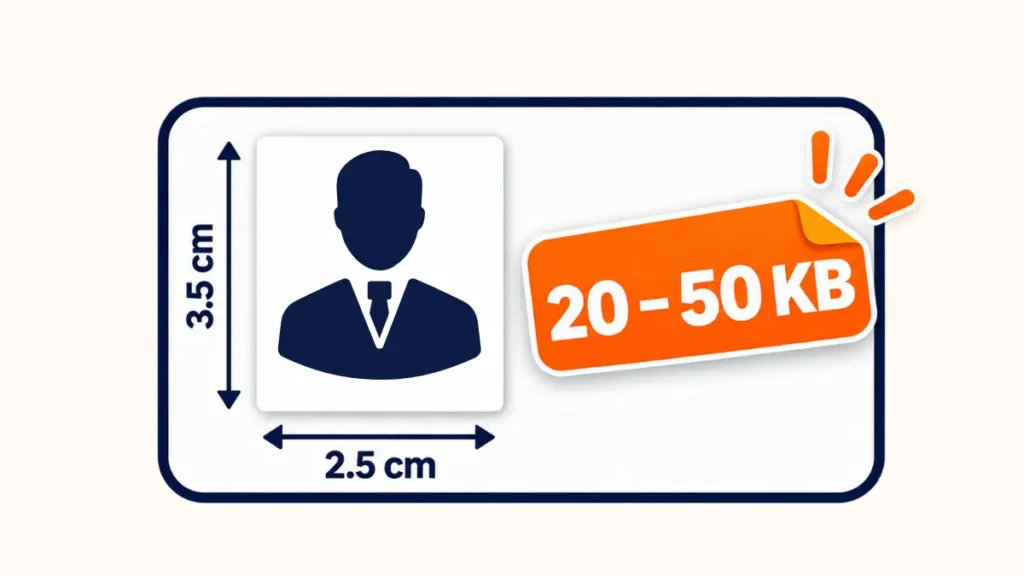
| Photo size | 3.5 × 2.5 cm |
| Pixels | 197 × 276 px |
| DPI | 200 |
| File size | Up to 20 KB |
| Format | JPG |
These numbers match what other PAN guides say for an online photo upload. One bank-linked guide lists a colour JPEG at 200 DPI, 3.5 × 2.5 cm and 20 KB or less. NSDL’s own PAN instructions page says a printed photo is 3.5 × 2.5 cm and must show your face clearly. That page does not list DPI or KB. The pixel and KB values here come from the tool and the guides.
Rules can change. Check the size shown on the upload page for your form. If it differs, edit the values in the tool.
How 197 × 276 Pixels Is Worked Out
You can check the pixel size yourself. The formula is pixels = centimetres ÷ 2.54 × DPI.
The photo is 2.5 cm wide and 3.5 cm tall. At 200 DPI, the width is 2.5 ÷ 2.54 × 200, which is about 197 pixels. The height is 3.5 ÷ 2.54 × 200, which is about 276 pixels. That is why the tool shows 197 and 276.
If you want to change the DPI of an existing file, try our DPI converter.
How to Do a PAN Card Photo Resize in 3 Steps
A pan card photo resize takes about a minute. You do not need an account.
Step 1: Upload your photo
Drag your photo into the box, or click Choose Photo. You can also paste a photo with Ctrl or Cmd + V. The tool takes JPG, PNG or WebP files up to 25 MB. A Photo tips box sits below the upload area. Then click Continue to Adjust.
Step 2: Fit your face and check the size
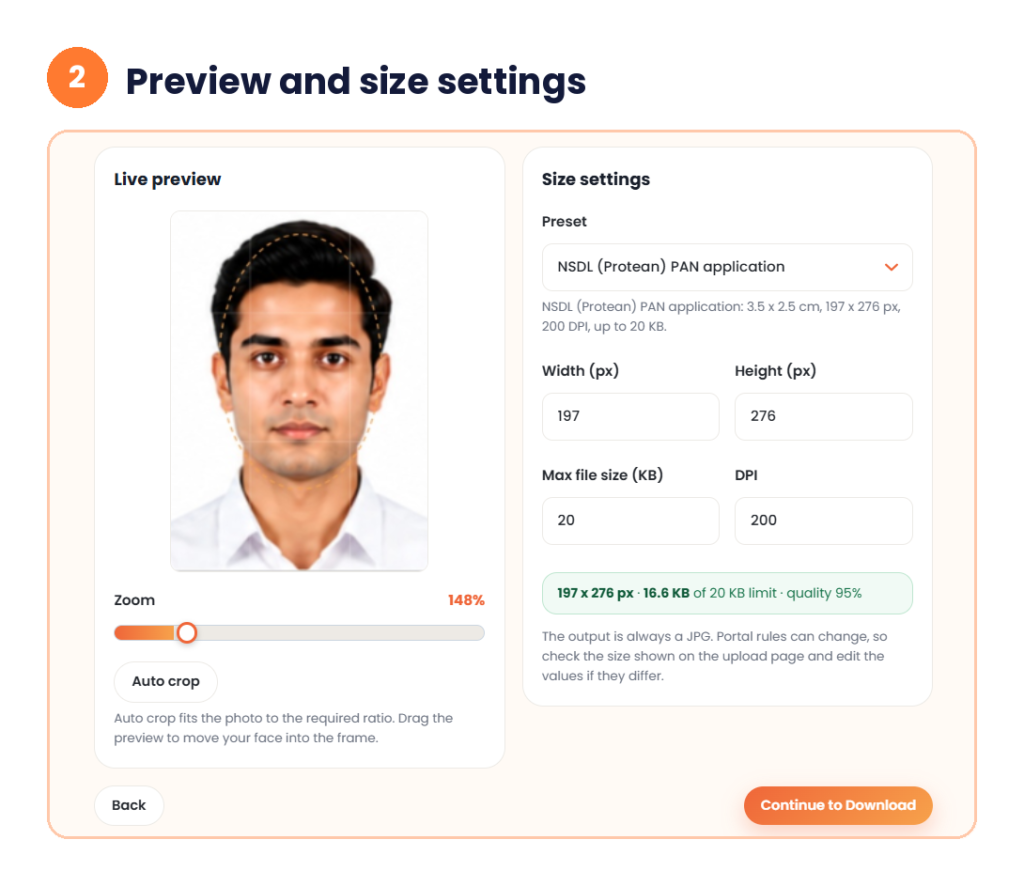
The Live preview shows your photo. Use the Zoom slider to fit your face in the frame. Click Auto crop to fit the photo to the PAN ratio. This pan photo resizer shows the result before you download. You can also drag the preview to move your face into the frame.
On the right, Size settings shows the Preset. It starts as NSDL (Protean) PAN application, the right choice for an NSDL PAN photo resize. Below it you see the Width, Height, Max file size and DPI boxes. A green line shows the result. In my test it read 16.6 KB of the 20 KB limit. Click Continue to Download.
Step 3: Check and download
The result card says “Your PAN photo is ready”. It lists the dimensions, the file size, the format and the resolution. Click Download JPG to save the file. Click New photo to start again, or Back to change the settings.

My Test: PAN Card Photo Resize in Action
I tested the pan card photo resizer with a front-facing photo. I kept the NSDL (Protean) PAN application preset for the NSDL PAN photo resize. I used Auto crop and a zoom of 148%.
The tool showed 197 × 276 px, 16.6 KB of the 20 KB limit and a quality of 95%. The result card confirmed the dimensions, a file size of 16.6 KB, the JPG format and 200 DPI. The file name was pan-photo-nsdl-passport-photo-1-35x45mm.jpg.
The file ended well under the limit, with 3.4 KB to spare. Your own result depends on your photo.
NSDL PAN Photo Resize vs a Normal Resize
An NSDL PAN photo resize has fixed rules. A nsdl pan card photo resize works the same way. The size is set, the DPI is set and the KB limit is hard. A normal resize for a resume or a profile picture ignores all three.
A generic editor can shrink a photo, but it is not a pan card photo resizer. It will not know that the PAN upload wants 197 × 276 px at 200 DPI. It will not stop at 20 KB either. Many people end up saving the file again and again, and each save costs time.
This NSDL photo resize tool has the PAN preset built in. You do not enter numbers unless your form is different. That is the main gain over a general tool. Every nsdl pan card photo resize should end with a file under 20 KB.
PAN Photo Size in KB and Pixels: Why Uploads Fail
PAN card photo size has two parts. Check your pan photo size in KB before you upload. The first is the pixel size. The second is the file size in KB. A photo can pass one and fail the other.
A phone photo is often several MB. That is far above 20 KB. A photo cropped to the right pixels can still be too heavy if it is saved at high quality. The tool handles both at once. It shows the KB result before you download.
Two photos that look the same can differ a lot in KB. Camera type, light and detail all change the file size. Plain backgrounds and soft light compress better than busy ones. Good light helps keep your pan photo size small.
Photo Tips for a Clean PAN Upload
The upload screen gives three tips. Use a recent colour photo with your face centred and clearly visible. Use a plain white or light background with no shadows. Look straight at the camera, and avoid glare on glasses and heavy filters.
The pan photo resizer works on JPG, PNG and WebP photos. A few more habits help. Stand a step away from the wall, so your shadow does not fall on it. Use daylight from a window in front of you. Keep your hair off your face. Do not crop too tight, because a PAN photo should show your whole face with a little space around it.
A photo with a clear face works better in any pan card photo resize. If your photo is dark or blurry, the tool cannot fix it. Take a new photo instead.
Zoom, Auto Crop and Drag
Auto crop is the core of the pan card photo resizer. It fits your photo to the required ratio. It is a good first step. After that, use the Zoom slider for fine changes. My test used 148%. You can drag the preview to place your face in the frame.
Look at the dotted guide on the preview. Keep your head and shoulders inside it. Check the final photo once more on the result card before you download.
Photo, Signature and Documents
A PAN form asks for more than a photo. You may need a signature and some documents too. Each has its own rule.
This tool is a PAN photo resizer. For the signature, one PAN guide lists a 200 DPI JPEG of 10 KB or less. Rules may differ for your form, so check the upload page. Our signature resize tool sets the width, height and KB.
Some people search for a pan card document resizer or an nsdl document resizer. If you mean your photo, use this pan card photo resizer. Need your documents as a PDF under a size limit? Our JPG to PDF converter lets you pick a KB target. Read the limit on your upload page first.
Common Mistakes in a PAN Card Photo Resize
Wrong shape. The PAN photo is taller than wide. Do not use a square crop.
Cutting the face. Pushing the zoom too high can cut your forehead or chin. Leave a little space.
Too much compression. A tiny file can look blurry. The tool aims for quality 95% where it can. Check the preview.
Dark background. Use a plain white or light wall.
Skipping the check. Every NSDL PAN photo resize ends with numbers on the result card. Read them. The size should match your form.
If you need a full passport photo first, use our passport size photo maker. If your form lists a size in MB, our MB to KB converter gives you the KB value.
NSDL PAN Photo Resize Checklist
Run through this list before you upload.
- Your photo is recent, in colour and clear.
- You used the NSDL (Protean) PAN application preset for the NSDL PAN photo resize.
- The size line shows 197 × 276 px.
- The file is 20 KB or less.
- The file is a JPG.
- You checked the numbers against your form.
Is My Photo Safe?
A pan card photo resize involves a personal image. The tool says processing happens in your browser. Your photo is not sent to a server. Even so, close the tab when you finish, and delete the file from shared devices.
Quick Answers Before You Start
What is the PAN card photo size?
The tool preset uses 3.5 × 2.5 cm, 197 × 276 px, 200 DPI and up to 20 KB. Check your own upload page, because rules can change.
How do I do a PAN card photo resize online?
Upload your photo, click Continue to Adjust, and fit your face with Auto crop and Zoom. Then click Continue to Download and save the JPG.
Can I change the size or the KB limit?
Yes. Edit Width, Height, Max file size or DPI in Size settings. Do this if your form shows different values.
Does the photo need a white background?
The tool recommends a plain white or light background with no shadows. Some portals check this, so use a plain wall.
What format is the output?
The output is always a JPG.
Is this NSDL PAN photo resize tool free?
Yes. This pan card photo resizer needs no signup and runs in your browser.
Conclusion
A good pan card photo resize saves you repeat uploads. For an NSDL PAN photo resize, start with a clear photo, use Auto crop and check the green size line. Use this NSDL photo resize tool before every upload. Then download the JPG and match it against your form.