
A bulk QR code generator saves you hours when you need many codes at once. You upload a list, set the design one time, and the tool makes every code. A shop with 20 branches or a school with 300 students does not need 300 separate clicks.
This free bulk qr code generator makes one code or a whole batch. You can pick a website link, text, location, Google Reviews, phone, email or Wi-Fi. For a batch, you add up to 500 rows from a CSV file. You can also paste the rows straight into the box.
Bulk QR Code Generator
Create QR codes for links, text, locations, Google reviews, phone numbers, emails and Wi-Fi. Make one, or hundreds from a CSV file. Everything happens inside your browser. No uploads. 100% private.
QR code type
How many codes?
Website details
Bulk CSV
Drag & drop a CSV file here
or click to browse. Up to 500 rows, 2 MB.
Live Preview
Design
Higher levels survive scuffs and smudges but make the code denser. Medium suits most uses.
Output
The exact size is rounded to keep every square sharp.
Keep at least Standard so phones can find the code.
Your QR codes 0
What Is a Bulk QR Code Generator?
A bulk QR code generator turns a list into many QR codes in one run. Each row in your list becomes its own code. A normal QR code generator makes one code at a time. That is fine for a single poster. It is slow when you have 50 product labels or 20 shop branches.
You will also see this called a QR code generator bulk tool. The idea is the same. You give it a list, and it gives you a set of images.
How to Use the Bulk QR Code Generator in 4 Steps
Using the bulk qr code generator takes a few minutes. You do not need to sign up.
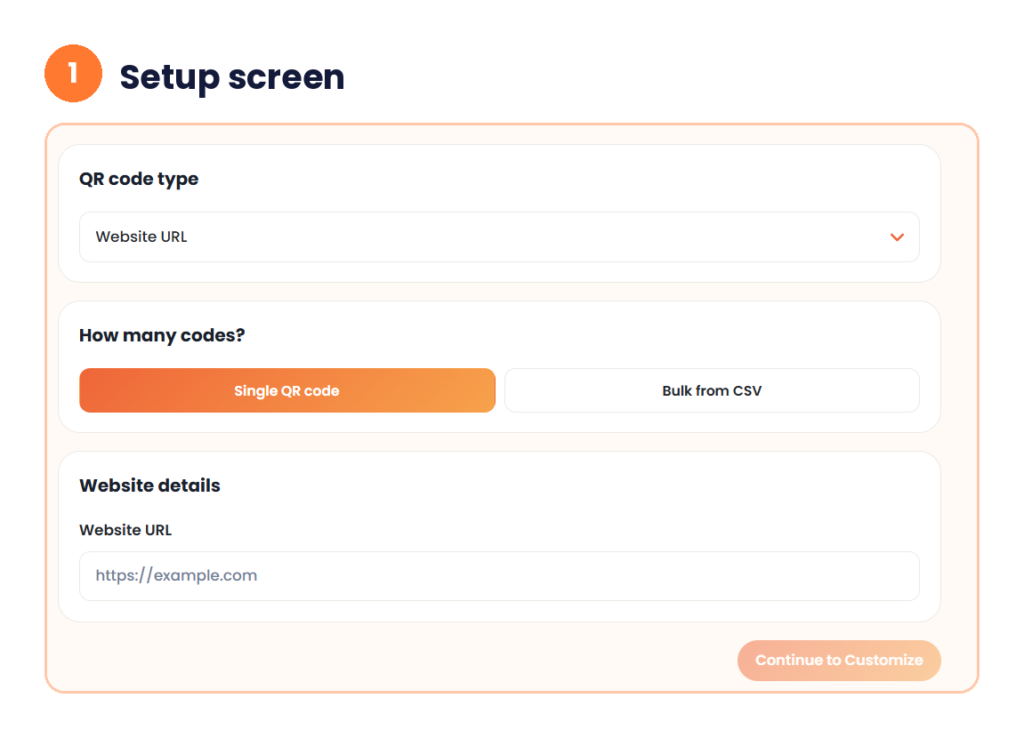
Step 1: Choose the QR code type and mode
The first screen has three parts. QR code type starts on Website URL. How many codes? lets you pick Single QR code or Bulk from CSV. Below that is a details box for your input. For a batch, click Bulk from CSV. Then click Continue to Customize.
Step 2: Add your list
In Bulk from CSV, the bulk qr code generator tells you which columns to use. For Website URL, the columns are name and url. The first row can be a header. The name column is optional. If you add it, the name becomes the file name of that code. A plain list of links also works. Put one link on each line, and the tool shows how many valid rows it found.
Drag your CSV into the box, or click Choose CSV File. You can also paste your rows into the box below. The limit is 500 rows and 2 MB. Click Download CSV template if you want a ready file. Use Clear to start again.

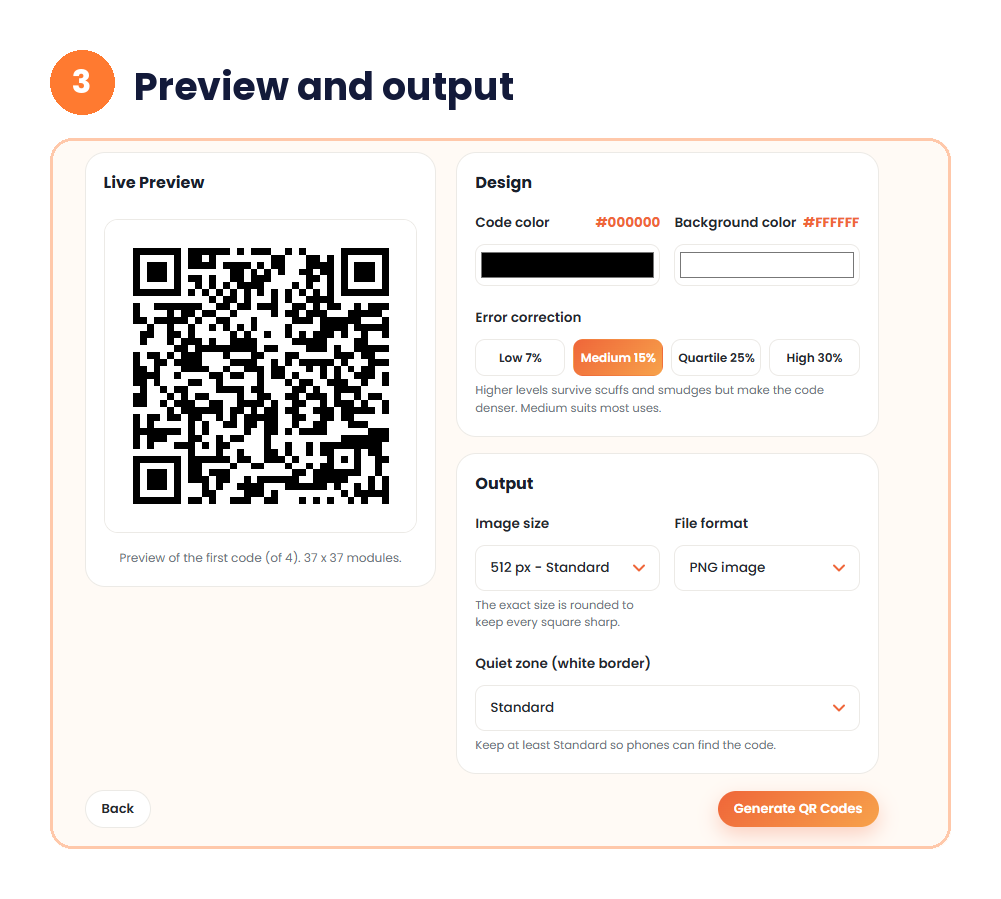
Step 3: Pick the design and output
Under Design, set the Code color and the Background color. They start as #000000 and #FFFFFF. Under Error correction, pick Low 7%, Medium 15%, Quartile 25% or High 30%. Medium is the default.
Under Output, pick the Image size. It starts at 512 px Standard. Choose the File format. It starts on PNG image. Choose the Quiet zone. It starts on Standard. The Preview shows your first code and how many codes are in the batch. Scan it with your phone camera or any QR code scanner before you go on. Then click Generate QR Codes.
Step 4: Download your codes
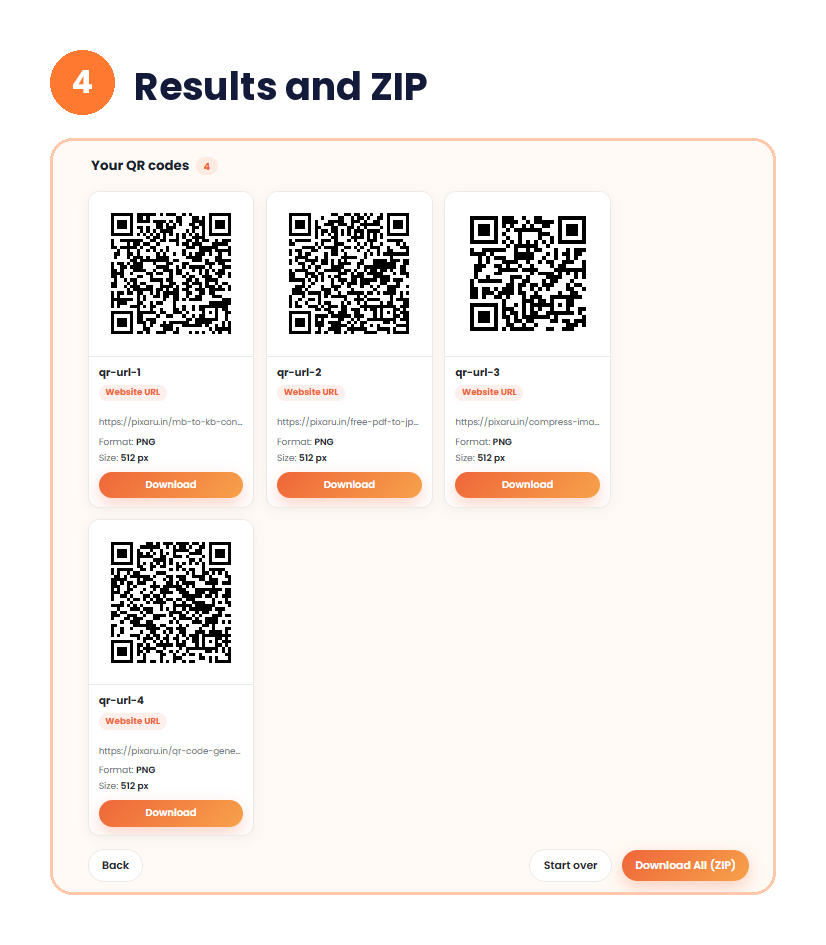
The Your QR codes list shows a card for each code. Every card shows the file name, the type, the link, the format and the size. Click Download on a card to save one code. Click Download All (ZIP) to save the whole batch in one file. This is the main benefit of a bulk qr code generator. Start over clears the list, and Back returns to your settings. Scan a few codes before you print.
My Test: Four Links in One Batch
I tested the bulk QR code generator with four links from this site. I chose Website URL and Bulk from CSV. I pasted one link on each line, with no header and no name column. The tool showed “4 valid rows”.
I kept the defaults: Medium 15% error correction, black on white, 512 px, PNG and Standard quiet zone. The preview showed the first code, “of 4”. It was 37 × 37 modules.
The tool made four cards, named qr-url-1 to qr-url-4. Each one showed Website URL, PNG and 512 px. Each had its own Download button, and a Download All (ZIP) button sat at the bottom.
I also made one code for the short link https://Pixaru.in. That preview was 25 × 25 modules. The longer links gave a denser code. Short links make simpler codes that are easier to scan from far away. Keep this in mind when you use a bulk qr code generator with long links.
QR Code Types You Can Make
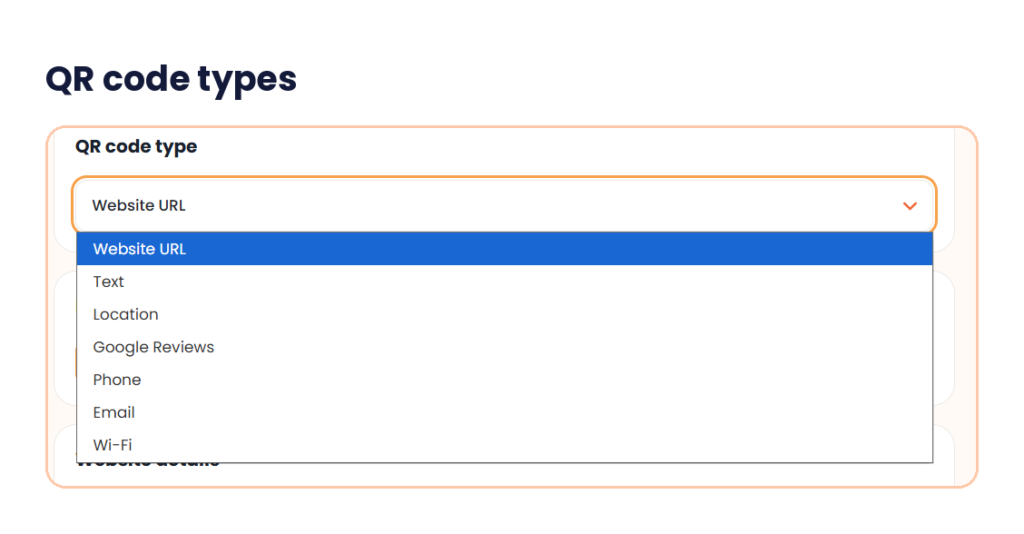
Click the QR code type menu to see the list. The qr code generator has seven types.
| Type | What the code does | Good for |
|---|---|---|
| Website URL | Opens a web page | Menus, product pages, forms |
| Text | Shows plain text | Notes, serial numbers, short messages |
| Location | Points to a place | Shop branches, event venues |
| Google Reviews | Opens a review page | Shops that want more reviews |
| Phone | Starts a call | Contact cards, help desks |
| Opens a new email | Support and enquiry forms | |
| Wi-Fi | Joins a network | Cafes, offices, guest rooms |
How to Prepare Your CSV File
A CSV file is the input for any bulk qr code generator. It is a plain list. You can make one in Excel, Google Sheets or a text editor. Each row is one QR code.
For the Website URL type, use this layout:
name,url
Andheri Branch,https://example.com/andheri
Pune Branch,https://example.com/pune
Delhi Branch,https://example.com/delhi
The first row is a header. The name becomes the file name, so each image has a clear label. Keep the names short and free of odd symbols. Do not leave blank rows in the middle.
The columns change with the type you pick. The tool shows the right columns above the upload box each time. Click Download CSV template to get the correct layout for the bulk qr code generator.
Open the CSV in a text editor before you upload it. This helps you spot a missing comma or a broken link.
QR Code Generator for Location
A QR code generator for location helps people find a place with their phone. They scan the code, and the phone opens the place in a map app. This suits a shop window, a delivery box or a printed flyer.
A location code points to one place, so you usually need only one code. You do not need a CSV for it. Choose Location in the QR code type menu and keep Single QR code.
The Location input menu gives you two choices.
Google Maps link. Open Google Maps and find your place. Tap Share, copy the link and paste it into the box.
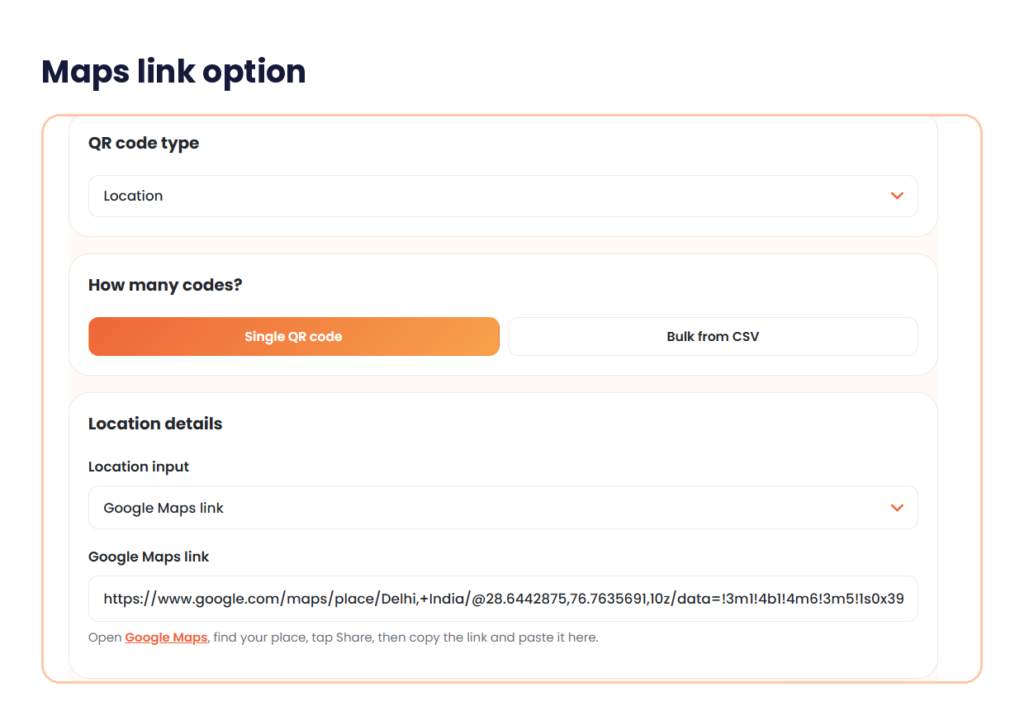
Latitude and longitude. Type the two numbers in the Latitude and Longitude boxes. In Google Maps, right-click a spot and tap the coordinates to copy them. The tool shows an example of 28.6442875 and 76.7635691.
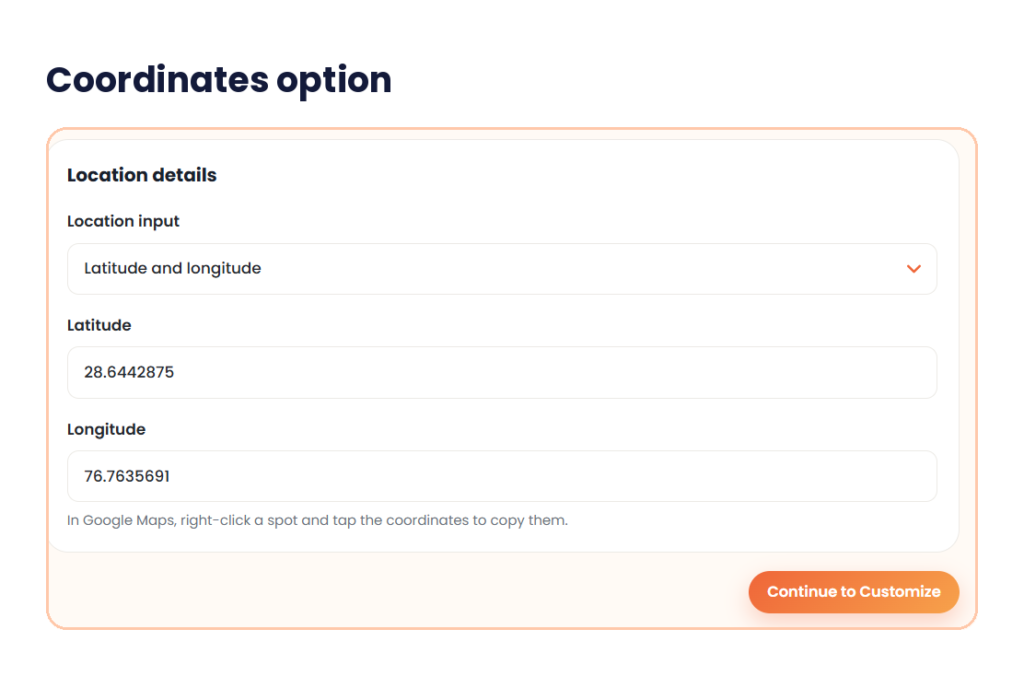
Click Continue to Customize and pick your design. Then click Generate QR Codes. The result card shows the file name qr-location, the type Location, PNG and 512 px. Click Download. This free qr code generator for location needs no account.
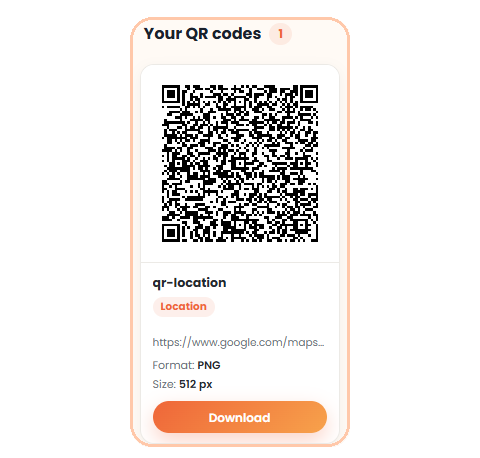
My location preview was 61 × 61 modules. That is a dense code, because a Google Maps link is long. Print a dense code a little bigger than a simple one.
Have a few branches? Make one code for each place. The file is always named qr-location, so rename each download. Scan every code and check the pin on the map before you print. A wrong branch on a window sticker confuses customers.
Bulk Google Reviews QR Codes
Shops often want more reviews. A bulk qr code generator makes one review code per branch. A Google Reviews code takes people straight to the review box. This saves them the search step.
A business with many branches has one review link for each branch. Put each link in your CSV, one row per branch. Name each row after the branch. This keeps the files easy to sort. Print each code at its own branch only.
Which Error Correction Level Should You Pick in a Bulk QR Code Generator?
Error correction lets a scanner read a code even when part of it is dirty or hidden. A higher level survives more damage. It also makes the code denser, so the squares get smaller.
| Level | Damage it can survive | When to use it |
|---|---|---|
| Low 7% | A little | Clean screens and short links |
| Medium 15% | Some | Most uses. This is the default |
| Quartile 25% | More | Labels that may get scuffed |
| High 30% | Most | Outdoor stickers and rough surfaces |
The tool says Medium suits most uses. Pick High for a sticker that will sit outside. Check the preview after you change the level.
Colour, Size and White Border for Bulk QR Codes
Dark code on a light background scans best. Black on white is the safest. A light grey code on white may fail on a phone camera. A busy photo behind the code can cause problems too.
The Quiet zone is the white border around the code. The tool says to keep at least Standard, so phones can find the code. Do not trim it.
For size, the tool starts at 512 px. It says the exact size is rounded to keep every square sharp. For print, a code of about 2 cm square is a common rough minimum. Use a bigger code if people scan from further away. If you need to set the print DPI of the image, use our DPI converter.
Who Needs Bulk QR Codes?
Any job with a list can use a bulk qr code generator. A restaurant group may need one menu code per branch. An event team may need one code per ticket. A school may need one code per student card. A shop may need one code per product shelf.
A property manager may put a code on each flat door. A clinic may put a Wi-Fi code in each waiting room. In each case, the list is the starting point. The bulk QR code generator does the repeat work.
Static or Dynamic QR Codes?
A static code holds your link or text inside the image. It does not need an account, and it does not expire. You cannot change the link after you print it. If the web page moves, the code points to the old address.
A dynamic code points to a short redirect link that you can change later. Most dynamic services charge for this. Pick a static code for a fixed link, like a branch page. Most free bulk qr code generator tools make static codes. If your link may change often, plan for that before you print.
Common Mistakes in a QR Code Generator Bulk Run
No test scan. One wrong link can break one code. Scan a few from the start, the middle and the end of your batch.
Wrong labels. A branch code on the wrong store is easy to miss. Check the name column against the link.
Low contrast. Pale colours look nice on screen and fail in print. Test with two or three phones.
Too small. A code printed tiny on a label may not scan. Print a sample first.
No white border. Cutting the quiet zone makes the code harder to find.
A form may limit the image size. Our 20 KB image compressor can shrink the file. Check the code still scans after you compress it.
Is It Safe to Use?
The bulk qr code generator says your work happens in your browser. Your list is not sent to a server. This matters when the list has customer links or branch addresses. Do not put private data like passwords in a QR code. Anyone with a phone can scan and read it.
Quick Answers Before You Start
How many QR codes can I make at once?
You can add up to 500 rows, up to 2 MB. Click Download All (ZIP) to save the batch in one file. Split a longer list into two files.
Can I paste my list instead of uploading a file?
Yes. Paste one link on each line, or use the name,url layout. The tool shows how many valid rows it found.
How do I make a QR code for a location?
Choose Location and keep Single QR code. Paste a Google Maps link, or type the latitude and longitude. Click Continue to Customize, then Generate QR Codes.
What can I put in a QR code?
You can pick a website link, text, a location, Google Reviews, a phone number, an email or a Wi-Fi login. The qr code generator for location takes a Google Maps link or coordinates.
Which error correction level is best?
Medium 15% is the default and suits most uses. Choose High 30% for stickers that may get scuffed.
Is this QR code generator free?
Yes. This free bulk qr code generator needs no account and runs in your browser.
Conclusion
A bulk qr code generator turns a list of 500 rows into 500 QR codes in a few minutes. Use the qr code generator bulk tool again when your list changes. Prepare a clean CSV, set the colours and error correction once, and check the preview. Scan a few codes before you print. Then you are ready to use them. Need a map code for one place? Use the qr code generator for location.