
A percentage increase calculator tells you how much a number has grown, as a percent of where it started. Enter the old value and the new value, click Calculate, and the answer appears with the formula behind it.
Percent Increase Calculator
Find the percent change between two values, add a percent, find the original value, or work out a salary raise.
Format: $ and 2 decimals
Try an example
Result
Formulas used
Percent increase: (new − old) ÷ old × 100
Add a percent: new = old × (1 + percent ÷ 100)
Find the original: old = new ÷ (1 + percent ÷ 100)
A negative result is a percent decrease. A starting value of 0 has no percent change.
This percentage increase calculator has four tabs. Percent increase compares a starting value with a new value. Add a percent adds a rise to a number, such as GST on a price. Find the original works backwards from a new value. Salary raise turns a raise into annual, monthly and hourly pay. A Format section sets the Currency ($, ₹ or None) and the rounding from 0 to 2 decimals. Five example buttons under Try an example fill the form for you. The result shows the difference, the multiplier and a Check line that proves the answer, and Copy sentence gives you a ready line to paste.
What is percentage increase?
Percentage increase is the size of a rise, shown as a share of the starting value. If a price goes from ₹80 to ₹100, it rose by ₹20. That is 25% of the original ₹80, so the increase is 25%. The idea comes from the basic percentage, a part out of 100.
The starting value is the base. That is where people go wrong. A rise of ₹20 on ₹80 is a bigger share than a rise of ₹20 on ₹400. Same rupees, different percentage. The percentage increase calculator always divides by the old value, so you do not need to think about it.
Percentage increase formula
The percentage increase formula is (new − old) ÷ old x 100.
Take ₹80 going to ₹100. The change is 100 − 80 = 20. Divide 20 by the old value 80 to get 0.25. Multiply by 100 and the answer is 25%. The percentage increase calculator shows this under Formulas used.
The other two tabs use the same idea turned around. This is the increase percentage formula for each tab.
| Tab | Formula |
|---|---|
| Percent increase | (new − old) ÷ old x 100 |
| Add a percent | new = old x (1 + percent ÷ 100) |
| Find the original | old = new ÷ (1 + percent ÷ 100) |
The Check line works the formula forward: old x multiplier = new. A negative answer means the value fell, so it is a decrease. A starting value of 0 has no percent change, because you cannot divide by zero.
How to calculate percentage increase in 3 steps
It runs on the page and needs no account. A first result takes about 20 seconds.
Step 1: Pick a tab
Choose Percent increase, Add a percent, Find the original or Salary raise. If you want to see how a tab works first, open Try an example and click a button: $80 to $100, Rent $1,200 to $1,350, Add 25% to $80, Find original: $100 after 25%, or Raise $60,000 to $65,000.
Step 2: Enter your values and set the format
Fill in the boxes for your tab. Percent increase asks for a Starting value and a New value. Add a percent asks for a Starting value and a Percent to add (%). Find the original asks for a New value and a Percent added (%). Then open the Format section and set the Currency, for example ₹ (rupee), and Round to, which starts at 2 decimals. Click Calculate.

Step 3: Read the result and the check
The Result card shows the percentage in large type with a plain sentence under it, such as “₹80 to ₹100 is a 25% increase.” Three boxes show the Difference, the Multiplier and New as % of old. Two bars compare Old with New. The Formula line shows each step, and a Check line proves the answer by working forward. Click Copy sentence for the line, or Copy result for the number. Reset clears the form.
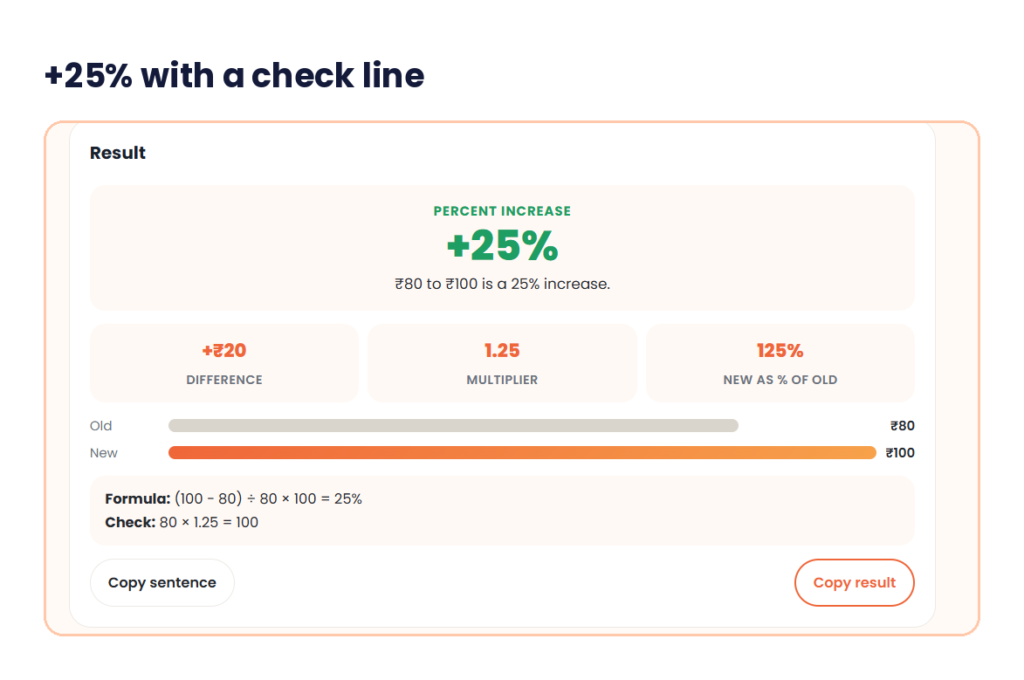
My test: ₹80 to ₹100
I opened the Percent increase tab, entered 80 as the Starting value and 100 as the New value, kept the Currency on ₹ (rupee) and Round to on 2 decimals, and clicked Calculate.
The card showed +25% with the sentence “₹80 to ₹100 is a 25% increase.” The Difference was +₹20, the Multiplier was 1.25 and New as % of old was 125%. The Formula line read (100 – 80) ÷ 80 × 100 = 25%, and the Check line read 80 × 1.25 = 100.
I worked it by hand and got the same. The Multiplier of 1.25 is worth keeping. Any time you need the new value from the old one, multiply by it.
Calculate percentage increase: worked examples
Here are everyday cases you can check in the percentage increase calculator on the Percent increase tab. I worked each one by hand with the formula above.
| Case | Old | New | Percentage increase |
|---|---|---|---|
| Phone plan | ₹80 | ₹100 | 25% |
| Monthly rent | ₹12,000 | ₹13,500 | 12.5% |
| Petrol per litre | ₹95 | ₹105 | 10.53% |
| Website visits | 12,000 | 15,600 | 30% |
| Bench press (lb) | 135 | 155 | 14.81% |
The petrol row shows why rounding counts. The exact answer is 10.526%, so Round to 2 decimals gives 10.53% and Round to 0 decimals gives 11%. Pick the setting your report needs.
A rise can pass 100%. A ₹40 item that goes to ₹130 has risen by ₹90, which is 225% of ₹40.
Add a percent to a number
The Add a percent tab is for tips, tax and markup. The increase percentage formula for this tab is new = old x (1 + percent ÷ 100). Add 18% GST to ₹1,000 and you get 1,000 x 1.18 = ₹1,180. A ₹40 item with 8% tax is ₹43.20. A ₹25 item with a 40% markup is ₹35. See GST in India for how the tax is structured.
The multiplier, the part inside the brackets, is the quick way to do it. The result card shows it too, and for ₹80 to ₹100 it reads 1.25. Adding 18% means multiplying by 1.18. The table lists the common ones.
| Increase | Multiply by |
|---|---|
| 5% | 1.05 |
| 10% | 1.10 |
| 12% | 1.12 |
| 18% | 1.18 |
| 20% | 1.20 |
| 25% | 1.25 |
| 50% | 1.50 |
| 100% | 2.00 |
Find the original value
The Find the original tab works backwards. If a price is ₹1,180 after 18% GST, the original is 1,180 ÷ 1.18 = ₹1,000. If ₹100 is the price after a 25% rise, the original was ₹80.
Do not take 25% off ₹100 to find the start. That gives ₹75, which is wrong. A 25% rise is on the old value, not the new one. Divide by 1.25 instead. For GST-inclusive prices on your own bills, our reverse VAT calculator strips the tax in one step.
Salary raise tab
The Salary raise tab turns a raise into three pay figures. Choose a Pay period (Annual, Monthly or Hourly), then say whether you know the new pay or the raise percent. Enter the Current pay, and set the Hours per week and Weeks per year.
Take an annual salary of ₹6,00,000 raised to ₹6,60,000. The raise is ₹60,000, which is 10%. Monthly pay goes from ₹50,000 to ₹55,000. With 40 hours a week and 52 weeks a year, that is 2,080 hours, so hourly pay goes from about ₹288.46 to about ₹317.31.
Work out the same number with the percentage increase calculator before an appraisal talk. If you ask for 12% and get 8%, you can see what the gap means in rupees a month.
Percentage decrease and negative results
A negative result is a decrease. From ₹500 to ₹400 is (400 − 500) ÷ 500 x 100 = −20%. The Percent increase tab shows the negative sign, so the percentage increase calculator also works as a percent change calculator in both directions.
A decrease and an increase of the same size do not cancel out. Take ₹100, drop it 20% to ₹80, then raise it 20%. You get ₹96, not ₹100. The second change is on the smaller base.
Percent versus percentage points
Do not mix these up. If your marks go from 60% to 72%, that is a rise of 12 percentage points. The percentage increase is 12 ÷ 60 x 100 = 20%. Both statements are true, and they mean different things. The Wikipedia entry on percentage points explains the gap.
If you want to turn marks into a percentage first, use our percentage calculator for marks. Hold a CGPA instead? Try the CGPA to percentage calculator.
Two increases in a row
Successive increases multiply. They do not add. Take ₹200 and add 10% twice. The first rise gives ₹220. The second gives ₹242. That is a 21% total, not 20%.
For two steps, multiply the multipliers. 1.10 x 1.10 = 1.21, which is 21%. Use the Add a percent tab twice and the second result will match.
Mental math shortcuts
You can often skip the percentage increase calculator for small sums.
- 10%: move the decimal one place left. 10% of 240 is 24.
- 5%: half of 10%. 5% of 240 is 12.
- 15%: 10% plus 5%. For 240, that is 24 + 12 = 36.
- 1%: move the decimal two places. 1% of 240 is 2.4.
To find the percentage increase from 40 to 50, think of the change, 10, as a quarter of 40. That is 25%.
The Excel and Google Sheets formula
In a sheet, put the old value in A2 and the new value in B2. Type =(B2-A2)/A2 in C2 and format the cell as a percent. You can also use =B2/A2-1, which gives the same answer.
To add a percent, use =A2*(1+10%). To find the original, use =B2/(1+10%). Use the percentage increase calculator to check your sheet. If the two disagree, look for a swapped old and new value.
Everyday uses
Prices, wages, rent, school fees, exam scores, social posts, workout weights and fuel costs all change over time, and a percentage increase calculator turns the change into one comparable figure. Shop owners use it for markup. Employees use it for raises. Students use it to compare test results.
Common mistakes
These slips affect any percentage increase calculator, so check them first.
- Dividing by the new value. The base is always the old value.
- Taking 25% off the new price to find the old one. Divide by 1.25.
- Adding two increases to get the total. Multiply the multipliers.
- Mixing up percent and percentage points.
- Using a starting value of 0. There is no percent change from zero.
- Rounding too early. Round once at the end.
Disclaimer
This percentage increase calculator gives results for general use. Check payroll, tax and GST figures with your employer, an accountant or the official rules before you file or pay.
Quick answers before you start
How to calculate percentage increase?
Subtract the old value from the new one, divide by the old value, then multiply by 100. For ₹80 to ₹100, that is 20 ÷ 80 x 100 = 25%.
What is the percentage increase formula?
(new − old) ÷ old x 100. To add a percent, use old x (1 + percent ÷ 100). To find the original, use new ÷ (1 + percent ÷ 100).
What does a negative result mean?
The value fell, so it is a decrease. From ₹500 to ₹400 is −20%.
Can a percentage increase be more than 100%?
Yes. If a value more than doubles, the increase is over 100%. From ₹40 to ₹130 is 225%.
How do I find the original price after a markup?
Divide the new price by 1 plus the markup as a decimal. If ₹100 is the price after a 25% rise, the original is 100 ÷ 1.25 = ₹80.
Can I use this percentage increase calculator for tax or payroll?
Use it to check and plan. For filing, payment or salary decisions, confirm the figures with your employer, an accountant or the official rules.
Open the percentage increase calculator, pick the tab that matches your question, enter the old and new values, and read Formulas used before you copy the answer. Then run a quick check with the multiplier table or a mental shortcut.