
A pdf to jpg converter online is what most people search for right after a website rejects their upload. You download an important document, open the application portal, and click upload. Then an error appears. The site only accepts JPG images.
This happens constantly. Government portals, college admission forms, banking websites, and job applications often want image files instead of PDFs. Most people solve it by taking a screenshot, which works but usually loses quality and takes longer than it should. A proper pdf to jpg converter gives you a cleaner result instead.
PDF to JPG Converter
Convert PDF pages to JPG, PNG or WEBP images instantly. Everything happens inside your browser. No uploads. 100% private.
Drag & drop PDF files here
or click to browse — you can also paste a PDF with Ctrl/Cmd + V
Supports PDF · Max 50MB per file
Selected PDFs 0
Conversion Settings
Left = highest quality, right = smallest files. Not used for lossless PNG.
Applies to every PDF in the queue. Example: 1-3,5,8
Converting…
Summary
Converted Pages
How to Convert PDF to JPG in 3 Steps
Step 1: Upload your PDF
Drag your PDF into the box, or tap Choose PDF Files. You can also paste a PDF with Ctrl or Cmd + V. The tool takes PDF files up to 50 MB each.
Step 2: Pick your settings
Choose JPG, PNG or WEBP as the output format. Pick a resolution. The tool recommends High, at about 150 DPI. Then choose High Quality, Balanced or Small Files. Under Pages to convert, leave All pages selected, or enter a range such as 1-3,5,8.
Step 3: Download your images
Each PDF page becomes its own image. Download them all in one ZIP file. Open the result before you upload it anywhere. A ten-second check is faster than filling out a form twice.
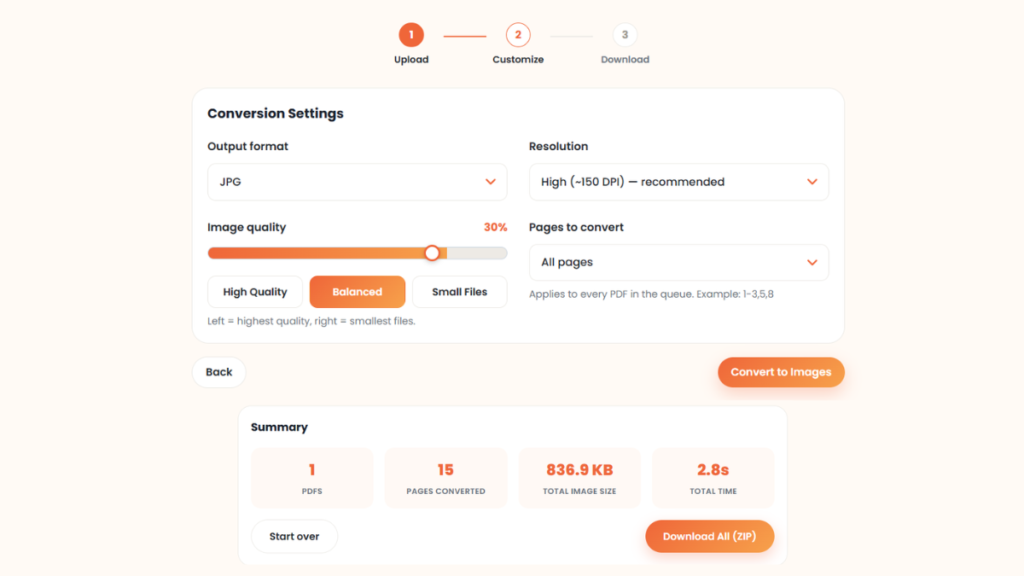
My Test: Converting a 15-Page PDF
I tested this tool with a 15-page PDF. I kept the defaults: JPG output, High resolution at about 150 DPI, and the Balanced quality preset, with all pages selected.
The conversion finished in 2.8 seconds. All 15 images together came to 836.9 KB, which is about 56 KB per page. The tool packed them into one ZIP file for download.
Your own result will depend on your PDF and your settings. Pages with photos or heavy color usually come out larger than plain text pages.
Why Use a PDF to JPG Converter?
PDF is one of the most trusted document formats. It keeps text, images, and page layout exactly where they belong. That makes it perfect for reports, certificates, and official forms. The trouble starts the moment a website asks for an image instead of a document.
Think about a passport application. Your scanned certificate is saved as a PDF, but the upload field only accepts JPG. The document is completely correct, yet the site rejects it anyway. The same problem shows up with college admission forms, scholarship applications, bank KYC documents, and employee verification systems. Converting the file into a JPG fixes this without changing what’s actually in it.
What Does a PDF to JPG Converter Actually Do?
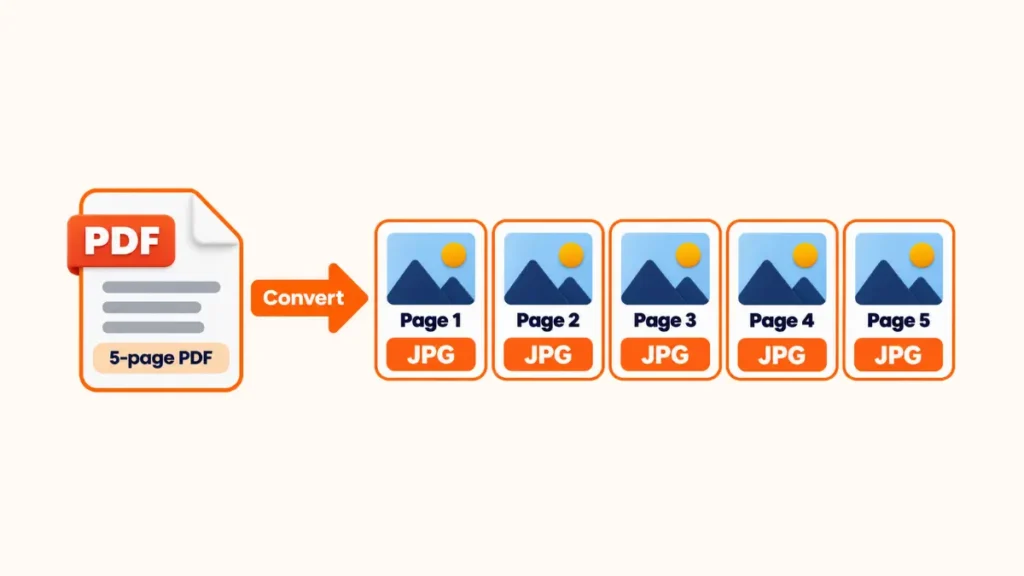
Many people assume the converter just changes the file extension. That’s not how it works. Every PDF contains one or more pages, and the converter reads each page and creates a new image from it. A five-page document becomes five separate JPG images.
This becomes genuinely useful in everyday situations. A landlord asks for the first page of your rental agreement. Instead of sending the whole PDF, you convert it and share only that page. A teacher does something similar with worksheets. One page becomes an image instead of a ten-page file sent to a class group.
Choosing the Right Quality and Resolution
Not every conversion needs the same settings, and picking the right one matters more than people realize. Resolution controls how much detail survives the conversion. A standard setting around 96 DPI works fine for screen viewing and keeps files small. A higher setting around 150 DPI is usually the safest default. It balances clarity with file size for most documents. Print-quality settings around 300 DPI produce the sharpest result but generate noticeably larger files.
Quality sliders work alongside resolution. Pushing toward “high quality” keeps text and fine detail crisp, which matters for contracts, certificates, or anything with small print. Sliding toward “small files” trades sharpness for a lighter file. That helps when a portal has a strict upload cap. If you only need a document for screen reading, standard resolution is enough. If someone downstream needs to print it, go higher.
If a portal asks for a specific DPI value, use our DPI converter after you convert the page.
PDF and JPG Serve Different Jobs
People often compare these formats, but they exist for different purposes. A PDF keeps documents exactly as designed. Fonts aren’t portable. Pictures don’t change. All pages look the same on every device. JPG is built for images instead, and phones, websites, and messaging apps all handle it well.
| Feature | JPG | |
|---|---|---|
| Best for | Documents | Images |
| Multiple pages | Yes | No |
| Easy to upload | Sometimes | Yes |
| Social media | Limited | Excellent |
| Photo editing | No | Yes |
Neither format is better overall. The right choice depends on what you need to do with the file next.
Common Reasons People Convert PDF to JPG
Identity and government documents come up constantly here. Aadhaar cards, PAN cards, driving licences, and voter ID cards often get saved as PDF scans. Plenty of portals want them as a plain image instead. Bank statements and KYC documents follow the same pattern.
Outside of official paperwork, a designer might send one page from a brochure for approval. A recruiter might ask for a single page from a longer document. Other triggers are small. A company asks for a JPG certificate. A university portal rejects a PDF. A messaging app squeezes screenshots until the text is hard to read. Screenshots technically work for these situations too, but a proper conversion keeps the text sharp instead of compressed and blurry. Convert the page into a JPG image and send exactly what is needed.
A Few Tips Before You Convert
Start with the original PDF whenever possible. A document that has already been compressed often produces lower-quality images.
Scan paper documents in good lighting. Dark shadows around the page remain visible after conversion.
If the document contains small text, choose the highest image quality available. The file becomes slightly larger, but the words stay easier to read.
Open the final image before uploading it anywhere. A ten-second check is much faster than filling out an application twice.
PDF to JPG Document Converter
Think about the last time someone asked for a single page from a document. Sending the whole PDF felt unnecessary. A pdf to jpg document converter fixes that in a few seconds. Each page becomes its own image, so you can share only the page that matters.
This is common with certificates, invoices, contracts, and mark sheets. A university may ask for the first page of a certificate. A bank may need only one page from a statement. There is no reason to send ten pages if one page answers the request.
The image is easier to preview, simpler to upload, and opens without a PDF reader.
Why Many People Choose a PDF to JPG Online Converter
Installing software for a single task rarely feels worth the effort. Most people only need to convert one document, save the images, and move on.
A pdf to jpg online converter works inside your browser. Open the tool, upload the file, and download the converted pages. The same steps work on a laptop, desktop computer, tablet, or mobile phone.
Picture this. You’re travelling and someone emails an important document. Your laptop isn’t with you. Your phone is enough. Open the converter in your browser, convert the file, and send the image before the deadline.
That convenience is one reason browser-based converters have become so popular. There are no extra programs to update and no files left sitting on the computer after the job is done.
PDF to JPG Converter Free: No Signup, No Watermark
Most conversions happen only once. A student submits an assignment. A customer uploads a document for KYC. A business owner shares an invoice. Paying for software rarely makes sense for jobs like these.
People search for a pdf to jpg converter free because they want a quick answer. They don’t want an account or another app.
A free converter works well for everyday documents such as:
- School assignments
- Government forms
- Bills
- Receipts
- Certificates
- Office reports
The entire job often takes less time than opening traditional editing software.
After You Convert: Meeting Upload Size Limits
Converted images can be larger than the portal allows. A clear page at 300 DPI may run well over 1 MB. If the upload fails for size, shrink the image with our MB to KB converter. If you need a small PDF instead, use the JPG to PDF 300 KB converter.
JPG or JPEG? There Is No Difference
This question comes up constantly. JPG and JPEG describe the exact same image format. Years ago, some systems only accepted three-letter file extensions, so “.jpg” became common. Other systems kept “.jpeg.” Today, almost every website, phone, and computer accepts both without issue.
If a form asks for JPEG and your file ends in JPG, don’t worry. In practically every case, it works exactly the same way.
Common PDF to JPG Converter Mistakes
Renaming a file from .pdf to .jpg does not work. The file stays a PDF inside, and most portals reject it. Convert the pages instead.
Choosing a very low resolution is the next slip. Small text turns blurry, and a portal may reject the image as unreadable. Stay at 150 DPI or higher for documents.
Converting a long PDF when you need one page wastes time and creates extra files. Convert only the pages you need. Finally, check the file size and format against your form before you submit.
PDF to JPG Converter Online: How Other Tools Handle Your File
Many people default to a well-known name like iLovePDF, Smallpdf, or Adobe because they have heard of it. That is fair, but each tool handles your file differently. The details below come from each company’s own pages in October 2026. They can change, so read the current policy before you rely on them.
iLovePDF is server-based. Its own page says uploaded files are removed from its servers within two hours. Smallpdf also processes files on its servers. Its PDF to JPG page says converted files are deleted one hour after processing. It also supports converting several PDFs in one batch. Adobe’s free converter supports PDF files up to 100 MB. Its page says your file is deleted unless you sign in to save it.
None of that makes these tools bad. It just means a tool that runs inside your browser works differently. It skips the upload step completely. No server holds your file for an hour or two, and you don’t need an account. For documents like Aadhaar scans or bank statements, that difference can matter.
A few practical things are worth checking with any tool. Look at the file size limit and the image types it offers. Check whether it can convert only the pages you need.
Quick Answers Before You Start
Can I convert every page of a PDF into a JPG image?
Yep. Every page turns into its own JPG, so a ten-page PDF gives you ten separate image files.
Does converting a PDF reduce quality?
Not really, as long as you start with a clear PDF. Bump the DPI up a bit if the page has a lot of small text, and detail holds up fine.
Can I use a pdf to jpg converter on my phone?
You can. Anything browser-based works the same on mobile, no app needed.
Is JPG the same as JPEG?
Basically, yes. Same format, different file extension, that’s the whole story.
Can I convert only some pages?
Yes. Under Pages to convert, enter a range such as 1-3,5,8, and only those pages are converted.
How do I convert PDF to JPG without losing text clarity?
Use 150 DPI or higher and pick the high quality setting. Check the image at full size before you upload it.
What if the JPG is too big for the portal?
Shrink it with the MB to KB converter linked above, and aim a little under the limit.
Is this pdf to jpg converter free to use?
It is. No signup and no watermark slapped on your images. Nothing sits behind a paywall once you’re a few conversions in.
Is my PDF uploaded to a server?
No. The conversion runs inside your browser, so the file stays on your device.
Conclusion
Converting a document into images makes it easy to upload, share, and store. It solves one of the most common problems people run into during online applications. Whether it’s a certificate or a KYC upload, the goal stays the same. Pick the right resolution, convert only the pages you need, and check the result before you upload it anywhere.
Always confirm the exact image size, format and DPI your portal asks for before you submit.