
Merge Photo and Signature Online Free – Download Instantly
Introduction
Many people search for ways to merge photo and signature when a form asks for one combined image. Most forms want a photo and a signature as two separate files, not one. Government portals, online exams, college admissions, scholarships, and job applications often want both together. Some ask for one combined image instead of two, and that catches people off guard.
So you need a quick way to combine both files. Two separate images floating around get confusing fast. A merged file avoids mismatched formats between your photo and your signature. This tool lets you combine your photograph and signature in seconds.
Merge Photo and Signature
Combine your photo and signature into one image for exam and application forms. Crop both, set the size, and compress under a target KB. Everything happens inside your browser. No uploads. 100% private.
1. Upload
2. Preview
This updates automatically as you upload, crop, or adjust the sliders below.
3. Size & Compression
Sets photo to 200×230px (20–50KB) and signature to 140×60px (10–20KB) — always double-check the exact notification, as requirements can vary slightly by exam cycle.
Crop Photo
Drag the image to reposition it, and use the zoom controls to fit it perfectly.
What Is a Photo and Signature Merger?
A photo and signature merger does exactly what it sounds like. It places your signature directly onto your photograph and gives you one finished image instead of two separate files. You upload your photo, add your signature, and save the result. Many online forms only give you a single upload field for both anyway.
In that case, you can merge photo and signature and download one clean file instead of juggling two. Think of it as a signature photo editor built for exactly one job. It’s different from a plain resizing tool, since it merges two files into one.
How to Merge Photo and Signature
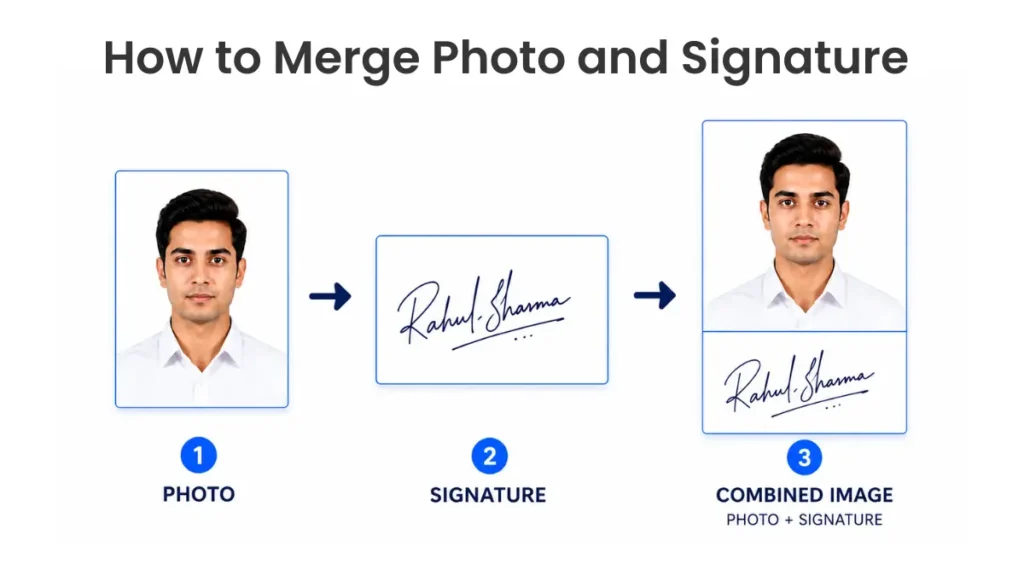
The process takes less than a minute once you know the steps. Start by selecting your photograph from your device. Then upload your signature image on a plain background. Position it where the form usually expects a signature to sit. Make it the right size to look natural with the photo, not too big or lost in a corner.
Make sure you check the live preview before deciding on anything. When it looks good you can merge photo and signature and download immediately. The end file is ready to be uploaded where needed.
How to Properly Arrange a Combine Photo and Signature
Most official portals require a specific layout and not just any combined image. The photo usually sits on top, with the signature placed in a plain white strip below it. This vertical layout is what banking, railway, and staff selection forms commonly expect. Some casual uses, like a stamp-style watermark, place the signature directly over the photo instead.
That overlay style rarely works for formal applications, though. A dependable signature photo editor should let you preview this layout before you download. Keep a plain white background between the two elements. That keeps the image clean and easy for any reviewer to read at a glance.
Why Merge Photo and Signature for Online Applications?
Plenty of forms work better with one combined image instead of two uploads. Government applications sometimes request a photo with a signature already included on it. Competitive exams often follow a similar pattern for identity checks. College applications and scholarship forms ask for it too. Job applications and registration forms sometimes lean the same way.
Requirements shift a lot between different portals. Always check the current instructions for your specific application before you submit anything. When you merge photo and signature the right way, you sidestep last-minute upload errors.
How to Prepare Your Photo and Signature
Good prep work makes the final result look a lot cleaner. Start with a clear, recent photo shot in decent light. Skip anything blurry, shadowed, or outdated. Your signature should be clean too, with solid contrast against its background. A plain white background works best when a form asks for one.
Check that both files have roughly the right dimensions. Trim the extra empty space around your signature first. This makes a signature on photo look neater and more professional. Low-resolution originals almost always come out blurry. Start with a sharp scan if you can.
Common Mistakes That Get Applications Rejected
A signature that’s too large tends to swallow the whole photo. Shrink it until it looks proportional to your face and shoulders. Go too small, though, and it gets hard to read once uploaded. Sometimes it drifts and covers part of the face instead. Reposition it lower, closer to where it usually belongs. A blurry photograph almost always means the scan needs redoing.
Wrong dimensions or format issues can usually be fixed with the export settings. Uploading a PDF instead of a JPG is another common one. A shadowed or non-white background causes trouble too. A file over the stated size limit often gets bounced back right away.
Typical Size and Format Requirements
| Application Type | Common Requirement | Typical File Size Range | Notes |
|---|---|---|---|
| Government forms | Combined image sometimes required | 20 KB – 200 KB | Always confirm current rules |
| Competitive exams | Photo with signature often requested | 20 KB – 100 KB | Formats vary by exam body |
| College admissions | Single image upload field | Up to 200 KB | Check size limits |
| Job applications | Combined or separate, depends on portal | 20 KB – 150 KB | Follow listed instructions |
| Banking KYC | Vertical photo-signature layout common | 20 KB – 50 KB | Signature usually black or blue ink |
Tips for a Clear Combined Image
Before you hit download, run through a few quick checks. Is the photo sharp, or does it look a bit soft? Make sure the signature actually reads clearly. A visible signature on photo is what most reviewers check first. Confirm the final dimensions match what your form asks for.
Save it in the right format, usually JPG or PNG. If there’s a file size cap, make sure your result fits under it. A reliable signature photo editor should let you preview all of this before you commit to it.
A Quick Note on Aadhaar, PAN, and Other Sensitive IDs
Some documents are more sensitive such as Aadhaar, PAN or passport files. In such cases, use only those tools that are officially recommended by your particular portal. Most job and exam forms are fine with a general-purpose merger like this.
If you’re unsure, check your portal’s official guidance before uploading anything sensitive. This little habit will save your personal documents in the long run.
FAQ
Can I merge a photo and signature into one image?
Yes, this tool lets you combine both into a single downloadable file.
How do I turn a photo into a signature?
Crop a clear photo of your signed paper tightly, then remove the background around the ink.
How do I add a name and signature in a photo?
Add your typed name as a separate line first, then place your signature just below it.
Can I put my signature on a photo?
Yes, you can place your signature on photo and adjust its size and position.
Can I resize the signature after adding it?
Yes, you can resize and reposition it before finalizing.
Can I combine a photo and signature on mobile?
Yes, it works fine on mobile browsers, not just desktop.
What image format should I use?
JPG and PNG both work well, but check what your form requires.
Conclusion
A combined photo and signature image saves time and cuts confusion. Merge photo and signature and download the result, and your application stays ready to go. Just check your form’s current requirements before you hit submit.
PIXARU
Our Related Helpful Tools