
Text to PDF is the quickest way to turn notes or copied text into a file you can send. You type or paste your words, pick a page size, and download the PDF. It takes about a minute.
This text to pdf free tool works in your browser. You can type, paste or upload a TXT file. You can also bold, italicise and underline the text before you convert. Then you choose A4 or another page size, set the margins and download the file.
Text to PDF Converter
Write or paste text, format it with bold, italic, underline and fonts, and convert it to a PDF instantly. Everything happens inside your browser. No uploads. 100% private.
Page Settings
"Arial" uses the standard Helvetica PDF font, which is metrically compatible with Arial and built into every PDF reader — no font embedding needed. Supports English and other Latin-script text; Hindi and other non-Latin scripts aren't supported yet.
What Does a Text Converter Do?
A converter like this takes plain words and puts them on pages in a PDF file. A PDF looks the same on every phone and computer. A plain text file does not. Fonts, spacing and line breaks can change from one device to another.
Many people search for text convert to pdf when they need a short piece of writing in a fixed format. This could be a declaration for a form, a cover letter, an assignment or meeting notes. The tool does that job, and it needs no software.
How to Convert Text to PDF Online in 4 Steps
Each step takes a few seconds.
Step 1: Add your text
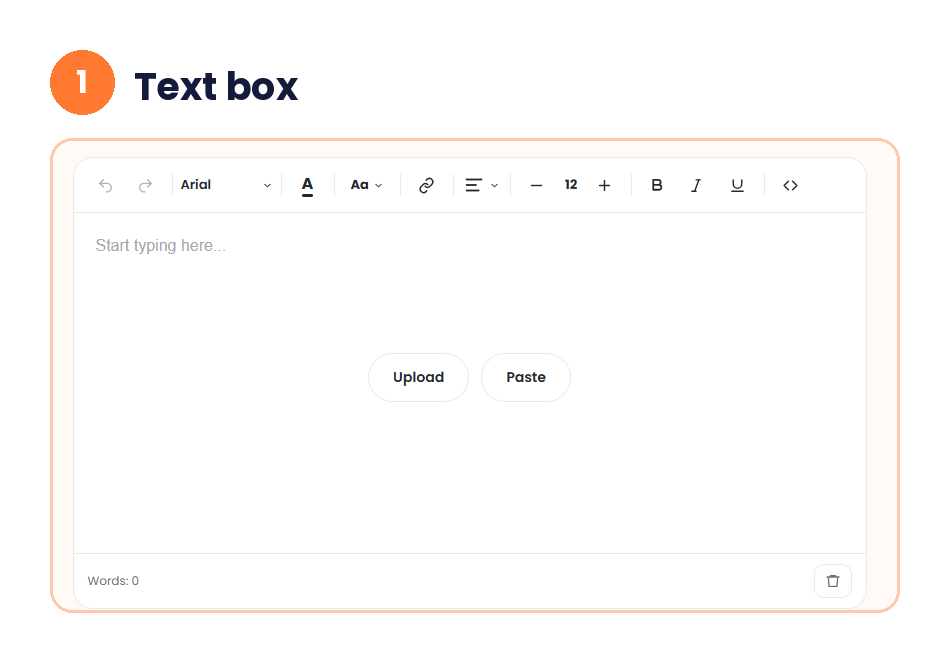
The editor shows “Start typing here…” with two buttons in the middle. Click Upload to convert a TXT file to PDF. Click Paste to add text you copied from a website, an email or a chat. You can also type straight into the box. A counter at the bottom left shows your word count. The bin icon clears the box.
Step 2: Format the text
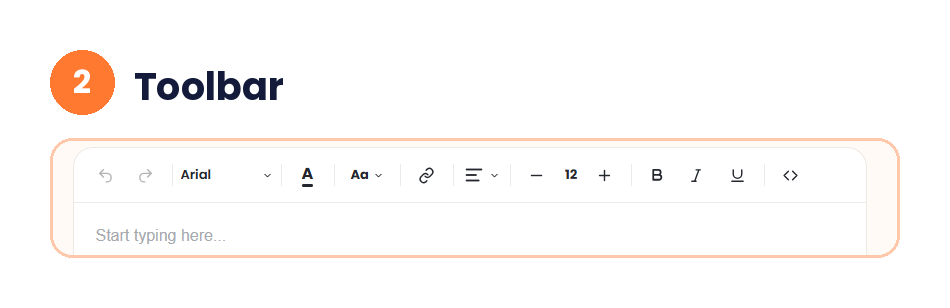
The toolbar sits above the box. It has undo and redo, a font menu and text colour. It also has a link button, alignment, font size, bold, italic, underline and code. The font starts as Arial and the size starts at 12. Use the plus and minus buttons to change the size. Select a heading, then click Bold to make it stand out.
Step 3: Set the page
Open Page Settings. Choose the Page size. It starts on A4. Choose the Margin. It starts on Normal. Choose the Line spacing. It starts on Single. Show page numbers is ticked by default, so untick it for a one-page letter. Type a File name, or leave it as “document”. Then click Convert to PDF.

Step 4: Download your PDF
The tool shows “PDF created” with the file size and the number of pages. Click Download Again if you need the file once more. Open the PDF and read it once before you send it.

My Test: A Short Document
I tried the tool with a short text. I kept the default settings: A4, Normal margin, Single line spacing and page numbers on. I left the file name as “document”.
The tool showed “PDF created”. The file was 4.9 KB and had 1 page. A text-only PDF is very small. Size limits on forms are rarely a problem for this kind of file.
Text Convert to PDF: Type, Paste or Upload
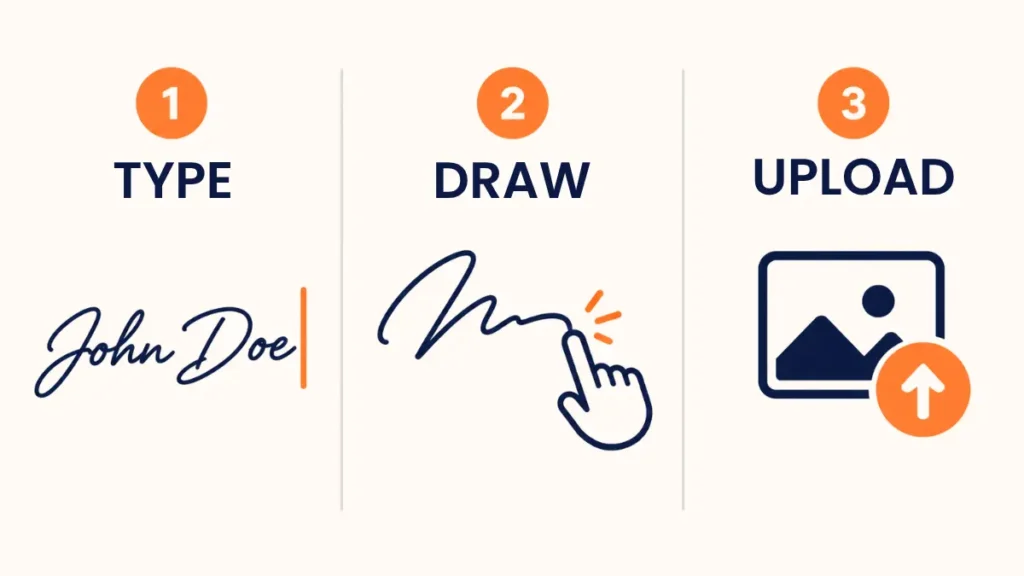
You have three ways to get your words into the tool. Pick the one that matches where your text lives.
Type when you are writing from scratch. Use the toolbar as you go.
Paste when the text is already on your screen. This works as a copied text to pdf converter for a web page, an email or a chat. If you need to copy paste text to pdf online, this is the button you want. Check the PDF after you download it. Text from some pages brings its own fonts and sizes.
Upload when you have a TXT file saved on your phone or computer. Click Upload and pick the file. The words appear in the box, and you can edit them before you convert.
What You Can Format Before You Convert
Plain text has no styling. This tool lets you add some first. Here is what the toolbar does.
| Button | What it does |
|---|---|
| Font menu | Changes the font. It starts on Arial |
| Font size | Starts at 12. Use plus and minus to change it |
| Bold, italic, underline | Style selected words |
| Text colour | Changes the colour of selected text |
| Alignment | Sets left, centre or right |
| Link | Adds a link to selected words |
| Code | Sets selected text in a code style |
Keep it simple. A resume or letter looks best with one font, one size and a bold heading or two. Too many colours make a document look messy.
Page Settings That Change Your PDF
Page Settings decide how your pages look. The defaults suit most documents.
| Setting | Default | When to change it |
|---|---|---|
| Page size | A4 | Pick another size if a form or printer asks for it |
| Margin | Normal | Use a smaller margin to fit more text on a page |
| Line spacing | Single | Use wider spacing for an assignment or a draft |
| Show page numbers | On | Turn it off for a one-page letter |
| File name | document | Type a clear name, like “leave-letter” |
A good file name saves time later. A form may ask for a name like “declaration.pdf”. Check this before you download.
What About Hindi and Other Languages?
The tool supports English and other Latin-script text. Hindi and other non-Latin scripts are not supported yet. The tool says so on the settings screen. If you paste Hindi text, the PDF may not show it correctly.
Here is a workaround. Write your Hindi text in a notes app and take a screenshot. Then turn the image into a PDF with our JPG to PDF converter. The text will not be selectable in that PDF, but it will look right.
About fonts: the tool says Arial uses the standard Helvetica PDF font. It is built into every PDF reader, so your file opens the same way on any device.
When Do You Need a PDF From Text?
Here are common reasons.
- A declaration or an application that a portal wants as PDF.
- A resume or cover letter you want to send by email.
- Notes from a class or meeting that you want to share.
- An assignment that your teacher wants in a fixed format.
- Text you copied from a website, so you can keep it offline.
Writing a letter for school or work? Our leave application maker gives you a ready format first. You can then paste the letter here and download it as PDF.
Common Mistakes to Avoid
Do not skip the check. Open your PDF and read it before you upload it. A missing line or a wrong name costs more than a minute of checking.
Do not leave the default file name if a form needs a specific one. Change it in Page Settings before you click Convert to PDF.
Do not paste Hindi text and expect it to work. Use the screenshot method above.
Do not turn on page numbers for a one-page letter. They look odd on a single page.
If your portal has a size limit, look at the file size shown after you convert. A text-only PDF is usually small. If a form lists a size in MB, our MB to KB converter shows the limit in KB.
Is It Safe to Use?
The tool says everything happens inside your browser. Your text is not uploaded to a server. This matters for a private letter or a document with your name and address. If the text is very sensitive, close the tab when you finish.
Quick Answers Before You Start
How do I convert text to PDF?
Type or paste your text, or upload a TXT file. Open Page Settings, then click Convert to PDF. Click Download Again to save the file.
Can I paste copied text and make a PDF?
Yes. Click Paste, or press Ctrl or Cmd + V in the box. Check the PDF after you download it.
Can I upload a TXT file?
Yes. Click Upload and pick your TXT file. The text opens in the editor, so you can edit it before you convert.
Can I convert Hindi text?
Not yet. The tool supports English and other Latin-script text. For Hindi, take a screenshot and convert the image with the JPG to PDF tool.
Can I change the font, size and page size?
Yes. The font starts as Arial at size 12, and you can change both. Page size starts on A4, and you can pick another size in Page Settings.
Is this converter free?
Yes. Use it as a text to pdf maker online, with no signup. The tool runs in your browser, so your text stays on your device.
Conclusion
A clean PDF takes about a minute. Add your text, set the page, convert and download. Read the file once before you send it. Need a ready letter first? Start with the leave application maker, then paste the text here.