
A reverse VAT calculator takes a price that already includes VAT and gives you the amount before tax. You need it whenever a receipt shows one total and your books need two numbers.
Type in the gross price and pick the rate. You get the net amount and the VAT amount in one step. This page also explains the maths, so you can check any result yourself.
Reverse VAT Calculator
Enter a price with or without VAT, pick the VAT rate and see the VAT amount, the original price and the final price. Results update as you type. Everything happens inside your browser.
Price and VAT rate
Pick the rate that applies to your goods or service in your country. Rates change, so confirm yours on your tax authority's website.
Result
How to Calculate VAT Backwards
Here’s how VAT is calculated going forwards. You take the net price and multiply by 1 plus the rate. At 20%, that’s 1.2. Going backwards, you do the opposite. Total ÷ 1.2 gives you the net price.
That’s the whole VAT formula for removing tax: net = gross ÷ (1 + rate). The VAT itself is gross minus net. Two steps, and both are plain division and subtraction.
Many people search for how to calculate VAT from a total because the answer feels like it should be simpler. It isn’t hard. It just isn’t the obvious subtraction. More on that below.
A Worked Example With £354
Say a supplier’s invoice shows £354 including VAT at 20%. You want the net price.
Divide £354 by 1.2. The answer is £295. Subtract that from £354 and the VAT is £59. Check it forwards: £295 times 1.2 is £354. It matches, so the numbers are right.
Run that check every time you work this out by hand. It takes ten seconds and catches most slips.
The Shortcut for 20% VAT
At 20%, VAT is always one-sixth of the gross price. Divide £354 by 6 and you get £59 straight away. Subtract £59 and the net is £295.
At 5%, the shortcut changes. VAT is one twenty-first of the gross total. A £63 price has £3 of VAT, so the net is £60.
These shortcuts suit quick mental checks on receipts. For anything going onto an invoice, use the calculator.
Why Subtracting 20% Gives the Wrong Answer
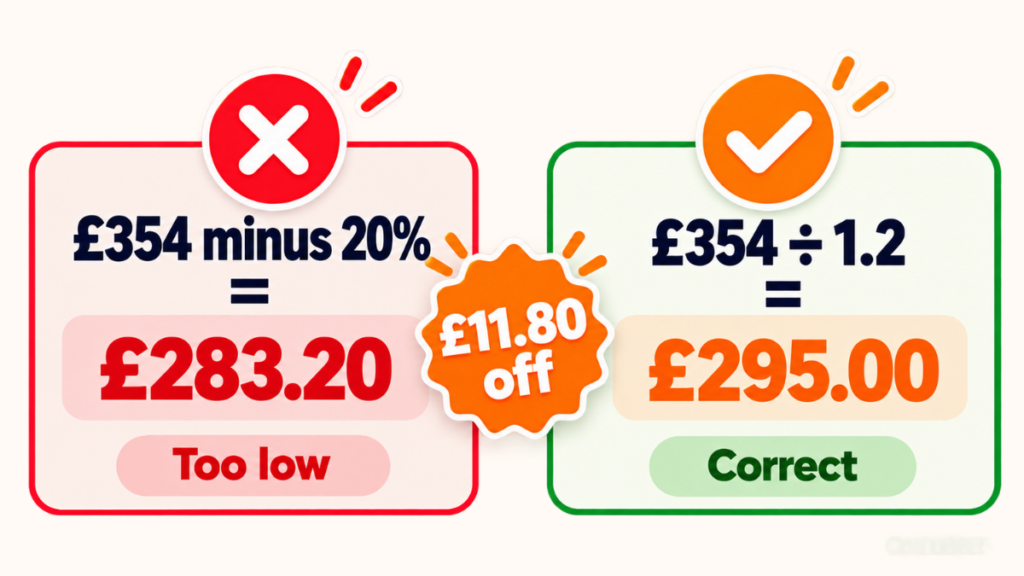
This is the most common mistake. Someone sees £354 and takes 20% off. That gives £283.20. It looks reasonable. It’s wrong by £11.80.
The reason is simple. The 20% was added to the net price, not to the gross price. So 20% of the gross is a bigger slice than the VAT actually charged.
VAT of £59 is 20% of £295, not 20% of £354. Always divide by 1.2. Never subtract a percentage of the total.
UK VAT Rate: 20%, 5% and 0%
The UK VAT rate comes in three levels most people meet. The standard rate is 20%. A reduced rate of 5% covers things like home energy. Some goods are zero-rated, including most food and children’s clothing.
Rates change and categories get redefined, so check gov.uk before you rely on any figure. A good reverse tool lets you type your own rate, so an update won’t break your sums. Exempt items are different again, because no VAT is charged on them at all.
Using an Online VAT Calculator Without Mistakes
An online VAT calculator saves time, but a few checks keep you safe. First, confirm the mode. Remove VAT and Add VAT give very different answers from the same number. Pick the one that matches your price.
Second, check the rate field. Defaults are usually 20%. If your item is at 5%, change it before you read the result. Third, look at how the tool rounds. Some round to the nearest penny. Others round down, which can leave you a penny short.
For a quick VAT calculation online, enter the total and select the rate. Then compare the VAT figure with the one-sixth shortcut. If they agree, you’re done.
Rounding Pennies Across an Invoice
Rounding matters more than it seems. £49.99 at 20% gives a net of £41.66 and VAT of £8.33. Those add back to £49.99 exactly.
Not every price behaves that nicely. When an invoice has several lines, rounding each line can differ by a penny from rounding the total. Pick one method and use it for the whole invoice. If you file VAT returns, check HMRC’s rounding guidance first.
How to Tell if a Price Includes VAT
Read the small print next to the price. If it says “inc VAT”, the tax is already in there, and a reverse calculation is what you want. See “ex VAT” or “+VAT” instead? The tax is still to come.
Shop prices aimed at consumers usually include VAT. Quotes between businesses often don’t. If the wording is missing, ask. Reversing a net price removes tax that was never there, and your figures end up too low.
Does the Same Method Work for GST?
It does. Only the rate changes. In India, a price of ₹1,180 including 18% GST has a base of ₹1,000. Divide 1,180 by 1.18, and the GST is ₹180.
So you can use the reverse tool with any rate by typing it in. Different countries and goods carry different rates, so use the one on your invoice or the official source.
When You’d Use a Reverse VAT Calculation
Three situations come up again and again. A shop sells at VAT-inclusive prices, and you need net sales for your accounts. A supplier quotes a total, and you want the cost before tax. Or you sold something online for £120, and you need the £20 of VAT to report.
Freelancers and small traders meet this most. Receipts rarely split the tax for you. A reverse calculation gives you the figures to record or invoice correctly. Reclaiming VAT usually needs a valid VAT invoice, so check the rules for your case.
Quick Answers on Reverse VAT
What’s the formula to remove VAT from a price?
Your divisor is one plus the rate. At 20% that’s 1.2, so a £120 total becomes £100.
How do I find the VAT amount itself?
Subtract the net price from the gross. At 20%, you can also divide the gross by 6.
Can I just knock 20% off the total?
You’d end up short. On a £354 total, you’d land on £283.20 instead of £295.
Which rate should I use?
Whatever is printed on your invoice. When in doubt, check gov.uk for the current UK VAT rate.
Can I trust a calculator for my VAT return?
Use it to check and plan. For filings, match every figure to your invoices and your accounting software.
Conclusion
A reverse VAT calculator turns a VAT-inclusive total into a net price and a VAT amount in one step. Divide by 1 plus the rate. Check the result forwards. Never subtract a percentage of the gross. Enter your total in the tool above, pick the rate, and use the figures you need.